
 This is a post that should probably have been made a little earlier, but we’ve been rather busy cranking out new EasyBCD versions and working on some exciting new developments. We’ve had a lot of questions regarding EasyBCD‘s compatibility with Windows 8, and what our findings are regarding the new Windows “touch-enabled” bootloader screen. In this post, we’ll cover the new bootloader and what works and doesn’t with EasyBCD.
The New Windows 8 Bootloader
Literally the very first thing you notice when installing and testing Windows 8 Developer Preview is the new boot screen. I personally find it to be very cluttered and unorganized, and generally aesthetically unappealing. However, compared to the decades of text-based boot selection menus that people are accustomed to, reviewers are seeing this as a dramatic improvement.
Some of the interesting things we’ve noticed about the new Windows 8 bootloader:
- The new look
- Completely new process of loading an OS
- Integration of repair tools into the bootloader itself
New Look
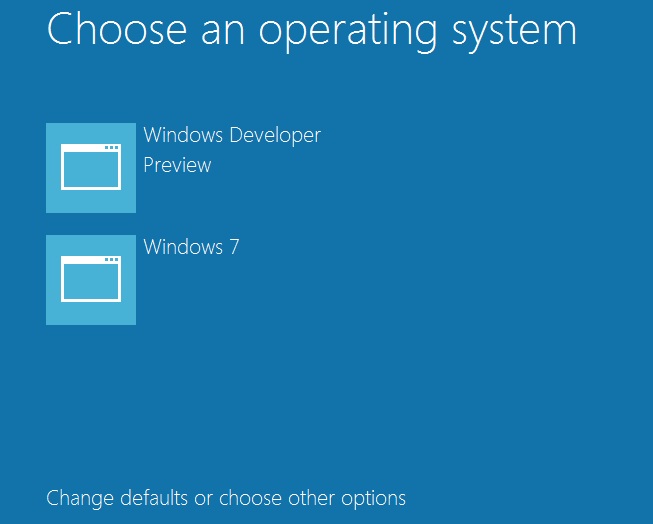
Hopefully the designers at Microsoft can get their hands on the new boot screen before Windows 8 goes RTM. That said, Microsoft has explained the rationale behind the redesign as being purely function over form – the new boot screen is part of the general overhaul of Windows to use the touch-friendly Metro UI. Microsoft is claiming that the new boot menu is intended to be a more touch-friendly interface – and you can’t really disagree with that, as the appallingly-oversized buttons and labels make it very hard to miss-click “miss-press” with one’s fingers. However, just how many people will be dual-booting on a PC with a touch-only input device, ummm, remains to be seen.
That out of the way, the new boot menu is more than just a visual overhaul, it’s virtually a complete rewrite of the BOOTMGR/BCD bootloader that was first revealed during the Windows Longhorn/Vista beta program. Some of the changes are a little subtle, but the Windows 8 DP builds have introduced some very tricky concepts, evolving the bootloader from just a selection menu to something rather more complicated.
New Boot Sequence
For reasons we have not yet been able to discover, though we are confident they will be revealed in time, Microsoft has chosen to completely change the manner in which operating systems are loaded once selected from the boot menu. The usual boot process that just about any bootloader goes through is something like this:
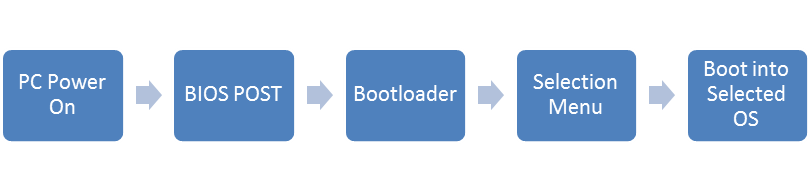
With Windows 8, this boot process has been changed completely, and now something more along these lines takes place:

It’s a subtle change as the boot menu is not shown the second time around, but the PC actually reboots after making the selection. We’re not clear on why Microsoft is doing this, but if I’d had to hazard a really wild guess, I’d say it’s to clean up the environment that’s been altered/modified/corrupted by the new boot menu. Basically, it seems that the new boot menu interface has become it’s own mini-OS, and is possibly running in protected mode (vs the traditional real-mode bootloader), and as such, needs to reboot to bring the system back into a real-mode that the Windows 8 kernel can initialize from and bring the system from real to protected mode itself. In short: the new boot menu is more of an OS and less of a boot menu than ever before.
Repair Tools Integration
If you were still in any doubt as to just how different the new bootloader was, and how much more of a complete and standalone OS it has turned into, you need look no further than the new repair tools integration. Windows Vista introduced the recovery center, a WinPE-based environment with some tools for both automated and manual repair, on the setup DVD, Windows 7 (in some SKUs and as of certain revisions) copied the recovery center image to the local hard drive and could, if the bootloader itself has not been wiped out, automatically provide an option of loading the recovery center from disk. With Windows 8, Microsoft has gone a step further, integrating the repair tools into the Windows 8 boot menu itself.
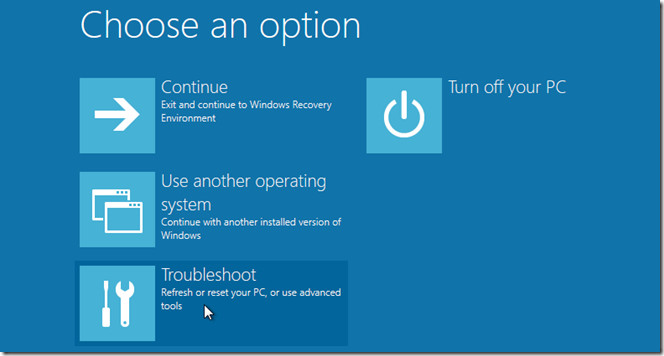
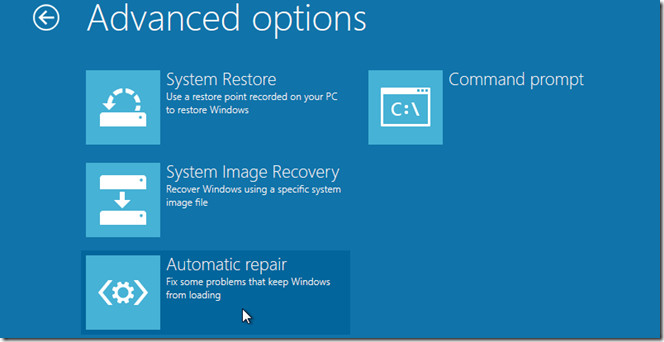

As you can see from the screenshots above, the bootloader no longer contains an entry/link to the repair center WIM image, the bootloader and the repair center have instead been merged together. Still, the same problem with the Windows 7 implementation remains: if the bootloader itself has been wiped (which is the most common problem), the recovery center cannot be accessed. In fact, we see no benefits for this implementation over the Windows 7 method, and can only see the drawbacks of enormously-increased complexity and longer load times.
EasyBCD and Windows 8 Developer Preview
Now for what you’ve all been asking: how does EasyBCD play with the Windows 8 Developer Preview? The short answer is, EasyBCD supports Windows 8 DP. The long answer is rather more complicated.
It seems that out-of-the-box, the Windows 8 “pretty” (and we use that word very loosely) boot screen supports only Vista and up. It will not show Windows XP, Linux, or other OS entries (in preparation for Secure Boot? Perhaps). EasyBCD can be installed on Windows 8 (though it will attempt to download the .NET Framework if you haven’t manually activated it, because Microsoft has done a 180 and biting the hand of the developers that powers it, has disabled .NET 1.0 – 3.5 compatibility out-of-the-box in Windows 8), and can be used to add, remove, rename, configure, and generally do whatever you want with entries and the Windows 8 boot menu.
The catch is that as soon as you use EasyBCD, Windows 8 will detect something along the lines of unsupported changes to the bootloader and cease to use the new boot menu / boot screen. It will revert to the Windows 7-style boot menu, including the text-based interface and the original boot sequence. Now, while we personally prefer the older menu, we realize that the majority of Windows 8 DP users are rather anxious to both keep the Windows 8 touch-enabled boot screen and retain usage of EasyBCD’s wonderful goodiness, having apparently never heard of the saying “you can’t have your cake and eat it too.” ;-)
Now we’re not sure how/why the Windows 8 boot menu reverts to the Windows 7 menu, because in fact, it is possible to force the Windows 8 boot menu to add unsupported entries if you use only very particular bcdedit commands; but as even something as minor and unimportant as changing the order of boot menu entries in EasyBCD causes Windows to use the old boot menu, it seems we’re missing something. Rest assured, this will all be taken care of in due time, though at the moment it seems rather folly to waste time trying to implement support for what is clearly the alpha stages of the new boot menu and the appropriate course of action would appear to be waiting for the next Windows 8 beta build (rumored to be sometime around February 2012).
EasyBCD, when used from within Windows XP – 7, can be used to add a Windows 8 entry to the bootloader in the same manner that you would a Windows Vista/7 entry. So, in short, EasyBCD supports Windows 8, but Windows 8 does not support EasyBCD :)
Windows 8 boot loader SUCKS. It’s fugly, just requires more clicks going in and out of menus instead of the simple text-based Windows 7 loader. It reboots to load other OSes but doesn’t reboot when loading Windows 8. It doesn’t detect previously installed OSes properly. People have asked repeatedly why it reboots. Obviously, it needs to, that’s not important, but it should NOT. Doesn’t look like they are going to change that. “Last Known Good Configuration” also seems to have disappeared. Chkdsk when run at startup before booting no longer displays any information besides % complete! It won’t tell me what corrections it made to the file system. So sad to see absolutely monstrous dumbing down of every aspect of the system.
From what I’ve read in this article, it could be possible that, if you have a multi boot system, a third party bootloader, and Windows 8 is installed on the second partition of the first drive, or first partition of the second drive, more simple it is not installed on primary partition of the first drive, to enter in an infinite restart loop, caused by Windows 8 bootloader in conflict with the preexistent bootloader. You can try to see if this can happen.
Its a beta people.
Its articles like this which is why companies don’t release anything more than late betas
that ‘repair tool’ is called WinRE for Windows Recovery Environment officially.
if you press F10 (or F11? cant remember) on that screen, you can see some debug strings on screen.
pic: look at the bottom and upright corner.
http://i53.tinypic.com/3525jtc.png
Guest – thank you for sharing that. I guess that pretty much proves it’s running in real mode as a standalone OS, and rebooting to get the system back into protected mode ? no reverse engineering needed!
Really this new bootloader serves no point in 2012. Maybe 10 years ago it would have found some use, but (U)EFI is the way to go now, and this “super bootloader” is just flogging a dying horse.
*sigh*.. This is rediculous.
1) IT PROVES NOTHING! The whole post is based on a random guess. There is NO proof posted here whatsoever.
2) Most people don’t have UEFI. Basically, only SOME Sandy bridge owners. They can’t dump bios or people will complain, and the old bootloader was woefully inadequate.
3) The claim that the environment “has been corrupted” doesn’t even make sense.. It could come down to requirements for secure booting, or a bug which has yet to be fixed. Regardless, it really is a wild guess…
It’s not a mini-OS – it’s actually already mostly booted win8. You can continue on to the win8 login in about 2 seconds or do a full reboot to an alternate OS. This is easy to see if you attach a debugger.
I think it’s all about secure boot. Although ostensibly to prevent rootkits, I think it’s mostly about shutting off the ubiquitous OEM SLP hacks, like modded BIOSes or bootloaders.
@Mahmoud: “Basically, it seems that the new boot menu interface has become it?s own mini-OS, and is possibly running in protected mode (vs the traditional real-mode bootloader)”
Windows NT and it’s derivatives have never used a “real-mode bootloader”. ntldr runs in protected mode. setupldr, the “text mode setup” piece of pre-Vista Windows setup also runs in protected mode.
@Tim
That’s pretty obvious just from looking at it – the debugger was probably overkill (still, proof is always good).
As others have said, it’s most likely the basis for, at least attempting, to keep the pirates at…bay – but to be fair, it would be difficult to pull off such eye candy without loading some type of GUI based OS, and since the vast majority of users don’t multi-boot, it makes perfect sense to start the full deal
Well whatever it is and whatever it does I just foolhardily installed this beast on a system with 2 disks containing vista and ubuntu linux installations on multiple partitions. The w8 boot system ignored/dropped linux and left me with the above. I recovered linux by reinstalling it’s boot system over 8’s and configured it to recognize all 3 OSes in their respective partitions. Well it seemed OK at first till I found that there is no way to start Vista again (yet). Fools rush in… Sorry there is no real wisdom (wise/dumb) to impart here.
@MF: Use EasyBCD to add entries for all three OSes. Should do the trick.
Thank you Mahmoud! I got it working this morning with grub and a bunch of script manipulation on Ubuntu but I am going to download and try easyBCD anyway.
I need to know if I can change the first boot fish picture of the Windows 8 CP, please ?
I have just found something interesting. My old (before Win 8) configuration was:
-first partition – 100MB Win 7 boot
-second partition – 70GB Win 7 Ultimate
-third partition – 70GB Windows 2008 R2
-a few logical disks with data
I have installed Win 8 Consumer Preview on third partition. I have installed some updates, drivers, rebooted a few times. Then I started my Win 7 Ultimate. I started EasyBCD 2.1.2 and changed 2 things:
1. I have clicked on Win 7 to make it default OS
2. I have moved Win 7 to the top of the list
After restart my boot menu have been changed to the old text menu. There are two entries in the menu, but both of them are Win 7. I have started my computer from Win 8 DVD and selected automatic repair – unfortunately repair tool does not allow me to repair Win 8 boot loader – it displays information about Win 7 only. There is no option to “search for other operating system” or something similar. I will try to format boot partition.
How do you get to Windows 8 boot loader?? do I have to download it or is it already included in windows 8 OS??
My graphical OS selector survived adding new entries but was changed to text-based Windows 7 loader when I changed the timeout to 4 seconds from 5 through BCD Edit.
I ran a tool called Visual BCD Editor to try to see what happened, and I see the following information under BcdStore\{bootmgr}:
0x26000025 bootmgr_custom:0x26000025 True
Maybe if this changed to False, it would revert back to the new loader? I don’t have my system backed up and don’t want to experiment with it right now, though.
@Knocks: apparently executing
bcdedit /bootems {bootmgr} offWill get you the graphical menu back.
bootmgr_custom:0I am seeing this issue on the RTM version of Windows 8 as well. I ran a rather seemingly innocuous BCDEDIT.EXE command (while booted in Win8) and noticed on the next reboot that I didn’t even get a boot menu at all… full stop. The boot loader loaded directly to Win7.
So then I ran EasyBCD and that at least got me back to the old Windows 7 and prior text boot loader so at least I was able to boot back to Win8. Still I do want the new boot loader. I actually do like the new look to the boot loader and easy access to all the diagnostic tools.
I partitioned my 500 Gb hdd, 50Gb XP, 100Gb Windows 7 and 100Gb windows 8. The rest is for data. I also have 2 1Tb hd installed for my movies and my music.
Installed Windows XP followed by windows 7 and then windows 8 as it should be. After installing windows 7 I edited the bootmenu with EasyBCD 2.2 beta to edit the XP name then instaled windows 8. The windows 8 Both loader recognized windows XP (Earlier version of windows just as the windows 7 bootloader had it. I installed other needed programs on all 3 windows having to restart continuously. Windows 8 bootmenu was the one in use until I edi9ted it with easybcd. No problem, but contrary than what I read here, windows 8 did recognise windows XP.
Well it is November 12, Windows 8 is here, and still this site only talks about beta versions of Windows 8? What many of us are looking for is a way to load win 7 to our new win 8 pc.
@Jeff: You’re looking at old posts.
Well there is nothing new that tells you how to use when windows 8 is installed and you are trying to install 7. If I have to start from scratch, why do I need a 3rd party boot manager smart ass?
@Jeff: If you wish to be rude and resort to insults, we cannot help you. Good luck.
Sorry, but I thought your comment to me about the old post was rude, stating the obvious, and that was my point (my point being that is not new). Did you not think that I knew it was an old link? I find no information on adding Windows 7 to Windows 8. It is always the other way around. Maybe you would be kind enough to point me to all the NEW posts on this topic, because all I am finding is OLD posts on how to dual boot 7 and 8 with 7 already installed. And if I have to install 7 first, I really don’t need a 3rd party boot manager. I know of promotional writings that state boot managers allow hundreds of OS. I just want two, with Windows 8 loaded and THEN Windows 7. Tell me something NEW.
Have a great day.
@Jeff Partition or create a Windows 7 vhd (Virtual Hard Disk) at boot to dual boot with Windows 8.
Hello!
I’ve tryed Ubutun on my second hardrive, but decided to take it off. The problem is that The boot loader of win8 is still running letting me the choice between win8 and ubuntu still. How can I desactivate the Windows Boot loader?
Thanks for your help!!!!
Thanks you…
“It is possible to force the Windows 8 boot menu to add unsupported entries if you use only very particular bcdedit commands…”
Yes! If you want to boot into the Win8 Advanced Options Startup, use the following command:
bcdedit /set {globalsettings} advancedoptions true
Try it, you’ll like it! You can also use Winaero.com’s
I don’t know much about software or software development, but i wonder why it is that I unplugged my win 8 Raid drives and it still tries to boot win 8 dev preview and comes up with an error of course. Only thing I figure is Microsoft wrote something on my XP drive, as most everyone says on here, the bootloader really has to be a standalone OS. I can still load XP even with the error, but where is this OS written?!? Did it install on all available drives?! The dev preview expired recently and I’d like to keep it on the drive because it has loads of data, but it’s a real hassle when loading XP as that is the OS of choice now. Apologies for the redundant comment, I just had to describe that the best I could.
I tried the windows 8 boot menu and i think it sucks.
Went back to using easybcd and works fine now on a comp with xp, 7 and 8.
If anything does happen i just use bootrec /fixmbr, bootrec /fixboot and bootrec /rebuild bcd in the command prompt at win7 and i am back in business. I’m a novice but it works for me.
I have a new computer with W8 pre-installed.
Can I install XP in a new partition & do I need a copy of Easy BCD?
Tim wrote: “It?s not a mini-OS ? it?s actually already mostly booted win8. You can continue on to the win8 login in about 2 seconds or do a full reboot to an alternate OS.”
Yes, it’s easy to claim a fast boot time if you start counting time *after* the OS already booted :-/
This design of the Windows Boot Manager actually opens up for heaps of problems. If I understand correctly, this is how it works:
1) The Windows Boot Loader/Manager boots up the last Windows 8 installation that was active (I’m suspecting this is according to the bcdedit {bootmanager}:resumeobject entry but not sure)
2) It shows the boot menu
3) If you choose the same Windows 8 installation, bam!, you get the start screen immediately
4) But if you choose anything else, including another Windows 8 installation on the same machine, you get a lengthy reboot process all the way through BIOS POST
A typical failure scenario that will haunt many people is this:
1) You have Windows 8 installed on disk1 and this is also where your EFI system partition resides
2) You install another disk (disk2) and put another installation of Windows 8 on it
3) After a while you decide to remove disk2
4) Bam! Error instead of boot menu when starting up
This happens if disk2’s installation was the last one booted. So even if we still have the EFI system partition in the same place as before, Windows wants to boot the last Windows 8 installation to show the boot menu. This OS is now gone and Windows Boot Manager fails.
Yes, you can trickle your way out of this through the Boot Manager menus, but the behaviour is so unexpected for a Boot Manager that I think people will misunderstand it and start doing more damage to their systems than needed. It would be far less error-prone to have the boot menu fully execute from the EFI system partition and not involve other partitions.
AND it would speed up booting of every OS which is not the last booted Windows 8 installation, as these are currently plagued with having to boot two OS:es.
Mike Wilson wrote: “4) But if you choose anything else, including another Windows 8 installation on the same machine, you get a lengthy reboot process all the way through BIOS POST”
Personally, I find this very annoying. I have two Win8 installs, one for work, one for private use and it boots default to the work installation. However, when I choose the private install, the machine completely reboots. Doesn’t seem at all needed since they’re both Win8 🙁
May I ask some question, please?
When I used multi OS, the menu boot option was changed in DOS mode (not Graphic mode like the first time win 8 install), its cause I have made changes the default boot not win 8, so how I can get back the boot menu option in graphic mode, like the first time I install win 8?
Well, April 2015 and still when I make a change in EasyBCD, I get the Win7 boot manager. To make matters worse, it’s somewhat intermittent that I get the Win8 bootloader instead. I’ll shut down one time (not hibernate or sleep) and I’ll get one menu, and other times I’ll get the other. I can’t find anything that seems to trigger one or the other. Is this something odd with my machine, or is it a known issue being worked? Or is there a solution anyone knows about? I would rather eliminate the viewing of a boot menu at all unless I call it with a fn key.
@kevin: see http://j.mp/EBCD2